How do I upload files using the File Manager?

 
Uploading your documents to the platform is a quick and simple process. Follow these steps to manage your content efficiently:


1. Access your account using the credentials provided to you.
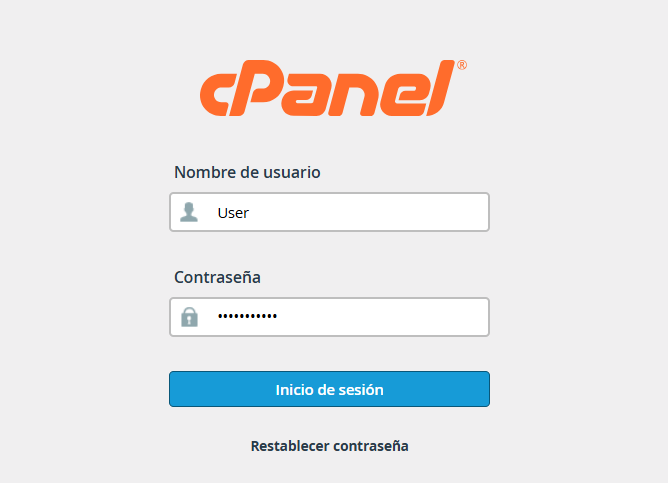
 

access.png


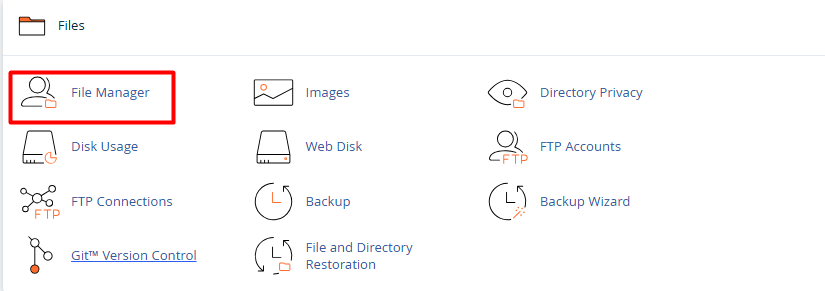
2. Once inside your control panel, locate and select the File Manager section.


3. Navigate through the folders to the specific directory where you wish to store the data, then click the Upload button, usually found in the top toolbar.



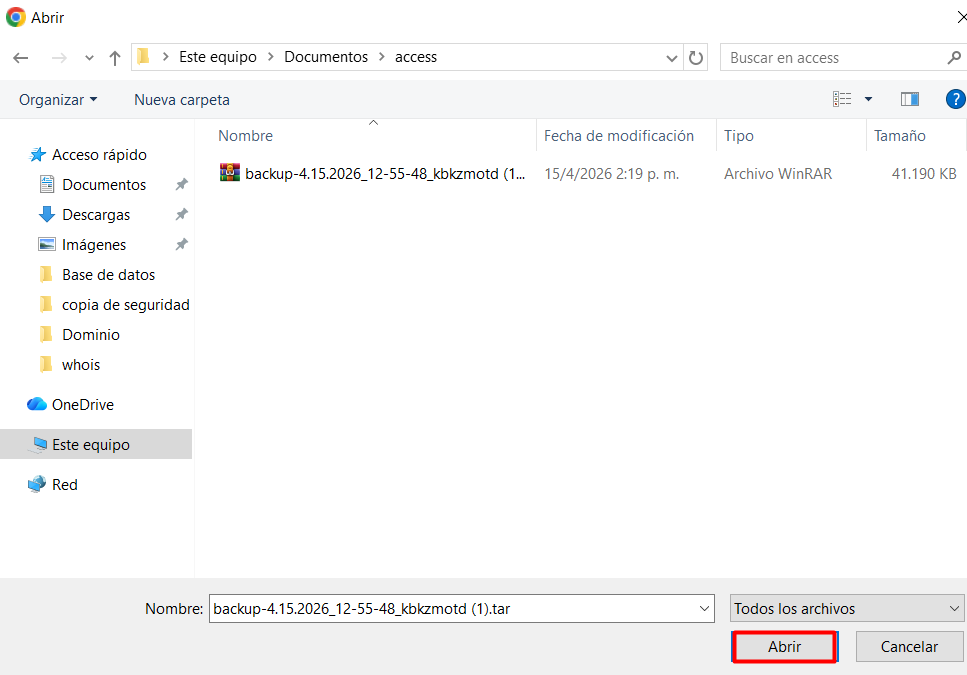
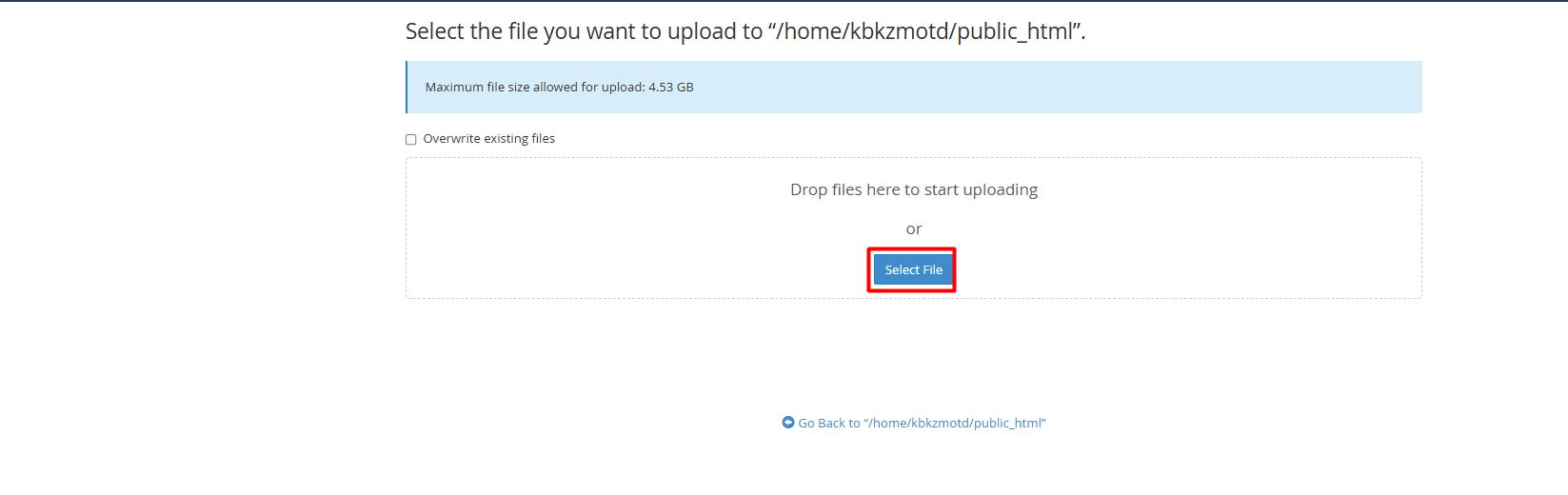
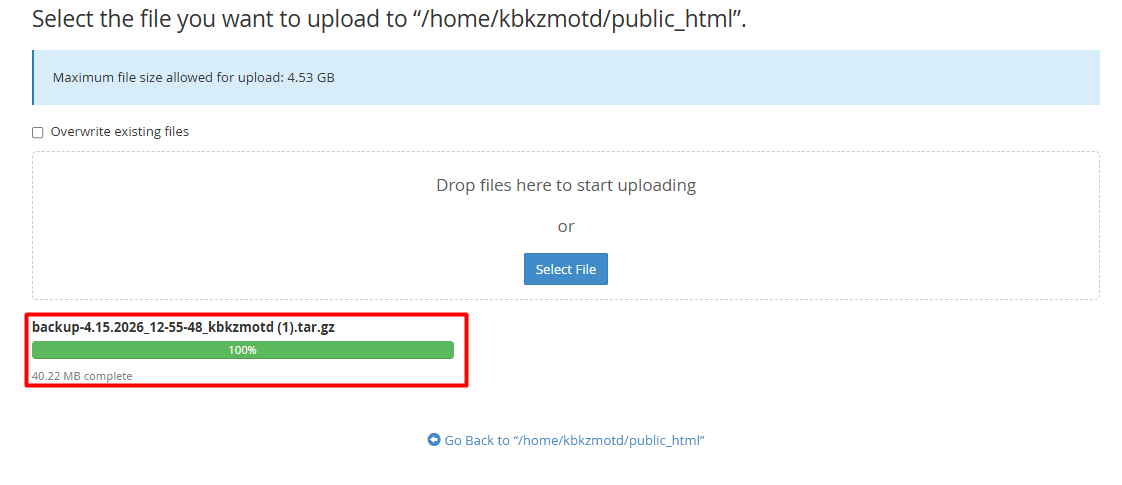
4. A new window will open. You can drag and drop items directly into it or click Select Files to browse your computer.


adminit.2.png


5. Once the progress bar reaches 100%, your files will be successfully uploaded and available on the server.


Note: Ensure your filenames do not contain spaces or special characters to guarantee full compatibility.
 
  • 0 Users Found This Useful
Was this answer helpful?

Related Articles

How can I connect to my cPanel via FTP using WinSCP?

  Connecting your website with WinSCP is a quick and secure process. Follow these three steps to...

How to create, edit, and delete files in cPanel?

  Managing files through a File Manager (commonly used in control panels like cPanel) is a...

How can I create an FTP account in cPanel?

  Setting up FTP access is the most secure way to manage files in specific folders on your...

How can I manage file and folder permissions in cPanel?

  Managing file security is a straightforward process that can be performed directly from the...

What is the File Manager in cPanel and what can I do with it?

  The File Manager is a fundamental tool within the cPanel interface that allows you to manage...