How to create, edit, and delete files in cPanel?

 
Managing files through a File Manager (commonly used in control panels like cPanel) is a straightforward process done directly from your browser. Here are the detailed steps: 
 
1. How to create a new file or folder?
 
1.1  To organize your content or add new features to your site, follow these steps:
 

1.2. Go to the directory where you want to add the item (remember that public_html is the main folder for your website).


1.3. In the top toolbar, click on the + File or + Folder buttons.
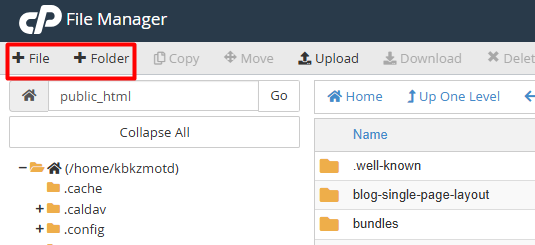


1.4. Type the name of the item in the pop-up window. If it is a file, don't forget to include its extension (for example: index.php or styles.css).
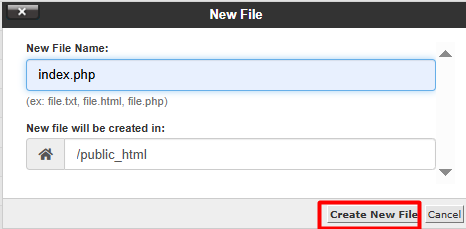


1.5. Click on Create New File and you're all set! 

 
2. How to edit existing files?
 
 
2.1. Modify the code or content of your documents directly from the panel:
 

2.2. Find the file within your directory tree.


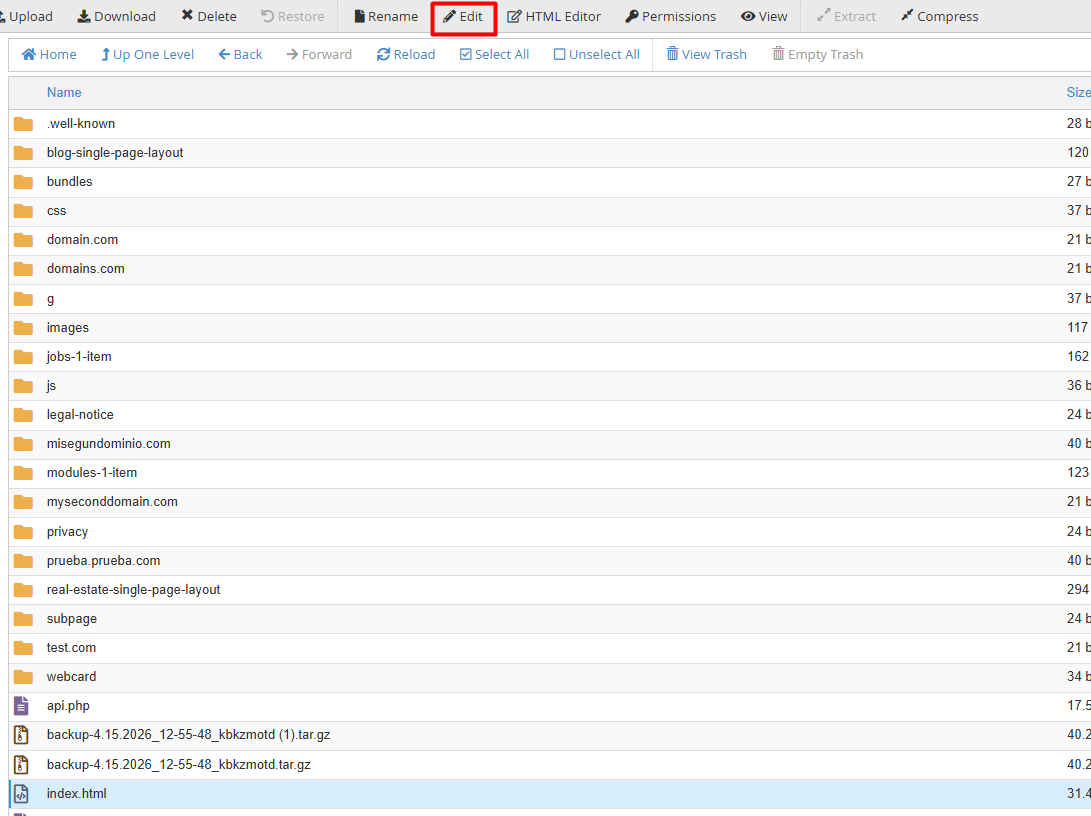
2.3. Right-click on the file and select Edit, or use the button with the same name in the top menu.


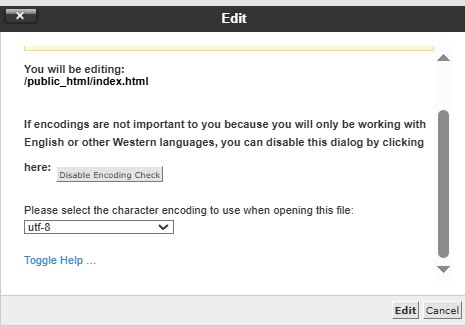
2.4. If the system asks for encoding, choose UTF-8 to avoid reading errors and press Edit.
 

2.5. Once you have finished editing, make sure to click Save Changes in the top right corner. 

 
3. How to delete files or folders?
 
3.1. If you need to clean up your space or remove obsolete items:
 

3.2. Click on the file or folder. To delete several at once, hold down the Shift key while selecting.


3.3. Use the Delete icon in the top bar or the right-click menu.
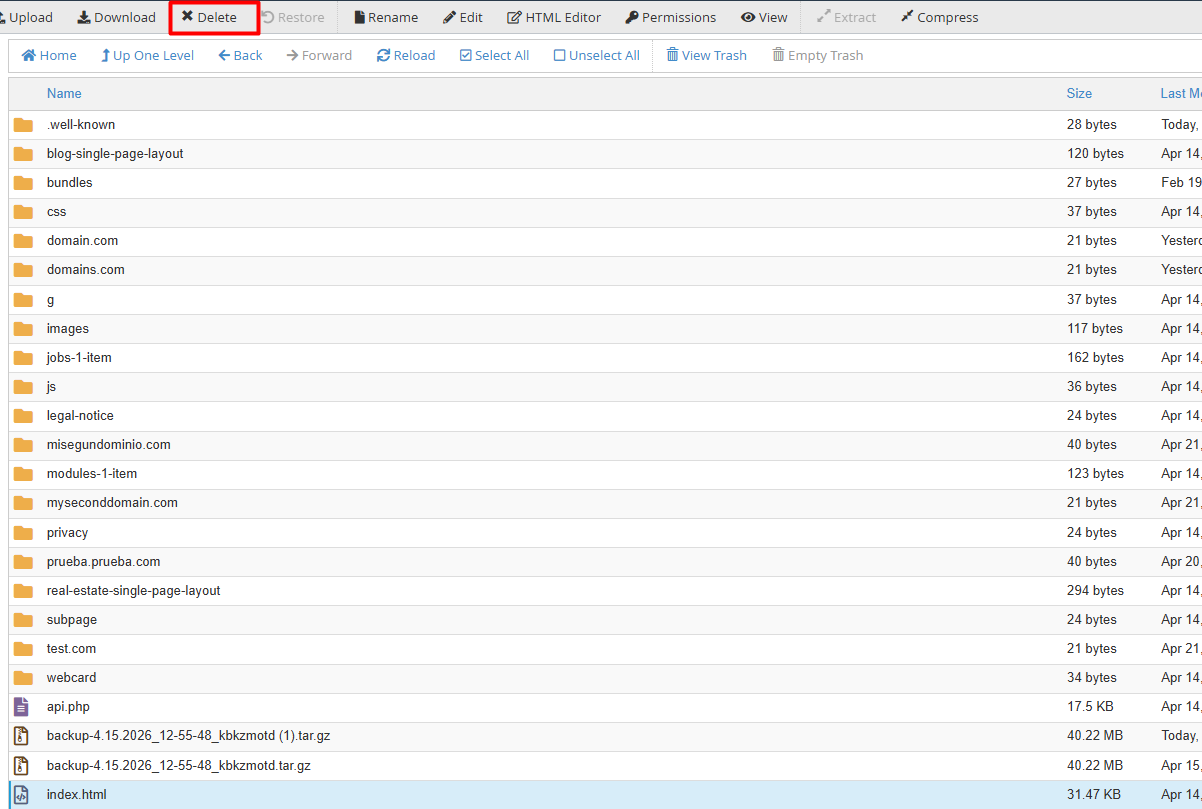


3.4. Confirm deletion:


3.5. To send it to the Trash (for later recovery), just click Confirm.
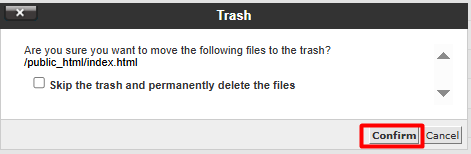


3.6. For permanent and immediate deletion, check the box "Skip the trash and permanently delete files" before confirming.


Note: For the purposes of this example, the index.php file is used as a reference. It is strongly recommended to avoid modifying or deleting this element, as it serves as the primary document and the default entry point for most server-based systems and websites.
  • 0 Users Found This Useful
Was this answer helpful?

Related Articles

How can I connect to my cPanel via FTP using WinSCP?

  Connecting your website with WinSCP is a quick and secure process. Follow these three steps to...

How do I upload files using the File Manager?

  Uploading your documents to the platform is a quick and simple process. Follow these steps to...

How can I create an FTP account in cPanel?

  Setting up FTP access is the most secure way to manage files in specific folders on your...

How can I manage file and folder permissions in cPanel?

  Managing file security is a straightforward process that can be performed directly from the...

What is the File Manager in cPanel and what can I do with it?

  The File Manager is a fundamental tool within the cPanel interface that allows you to manage...