
Unlike a full backup, a partial backup allows you to restore specific files or databases directly from the cPanel interface, optimizing time and storage resources.
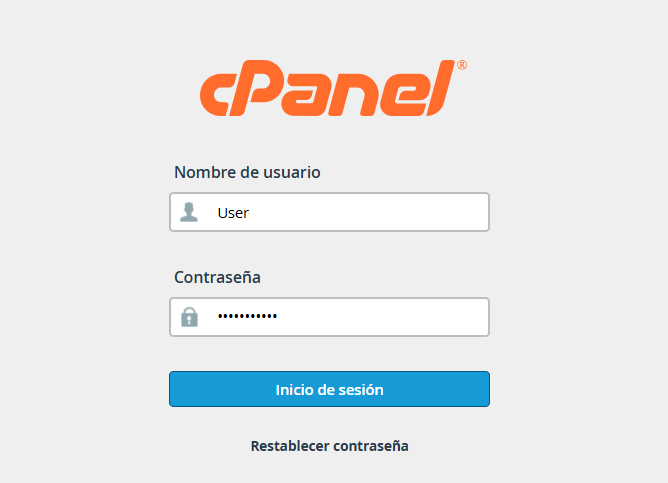
1. Log in to your cPanel account.
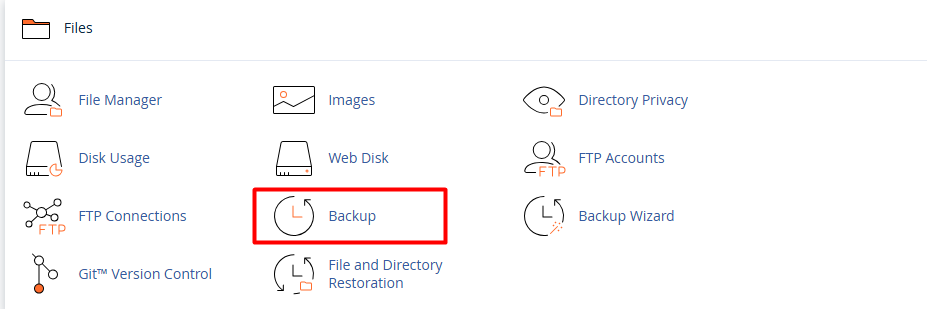
2. Locate the Files section and click on the Backup tool.
3. Go to the section titled Download a Partial Backup. Here you can choose the specific component you wish to save:
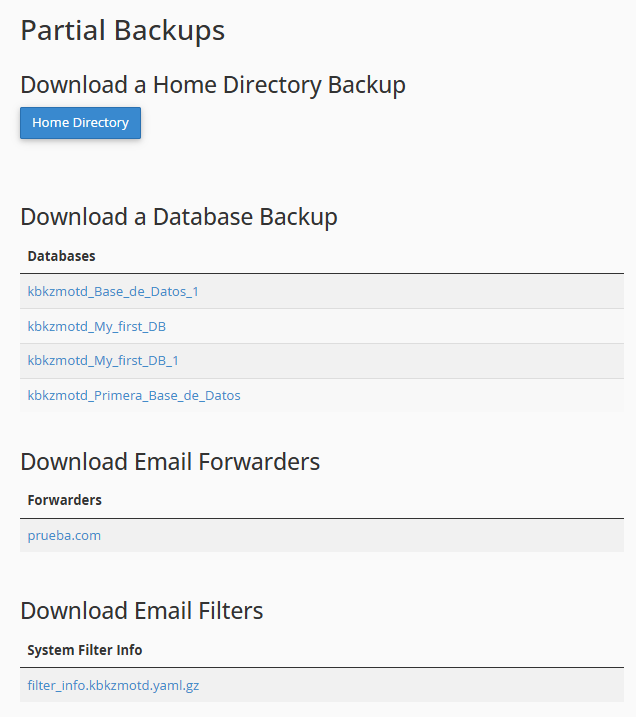
3.1. Home Directory: Compresses and downloads all your website files.
3.2. MySQL Databases: Allows you to download each active database individually.
3.3. Email Forwarders or Filters: Ideal for backing up specific messaging configurations.
Click on the name of the item (the database or directory) and the download will start automatically in your browser.
