
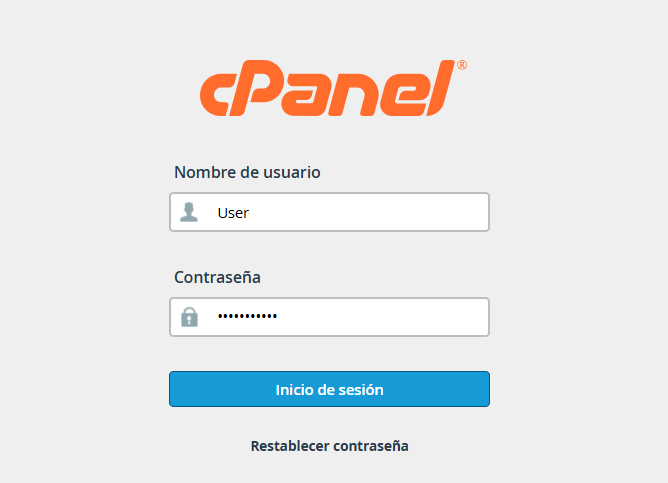
1. Log in to your cPanel account using your administrator credentials.
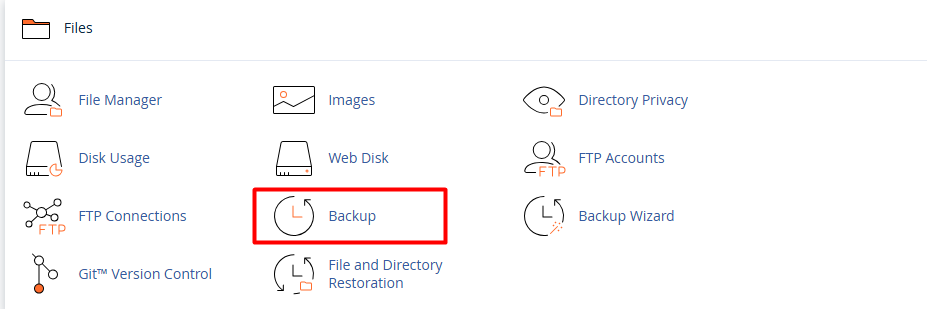
2. Locate the "Files" section and select the "Backup" option.
3. In the "Full Backup" section, click the "Download a Full Account Backup" button.

4. Destination Settings:
In the "Backup Destination" dropdown menu, make sure to select "Remote FTP Server."
Optional: Enter your email address if you wish to receive a notification once the process is complete (we recommend leaving this enabled).
5. Remote Server Credentials: Fill in the required fields with your external server information:
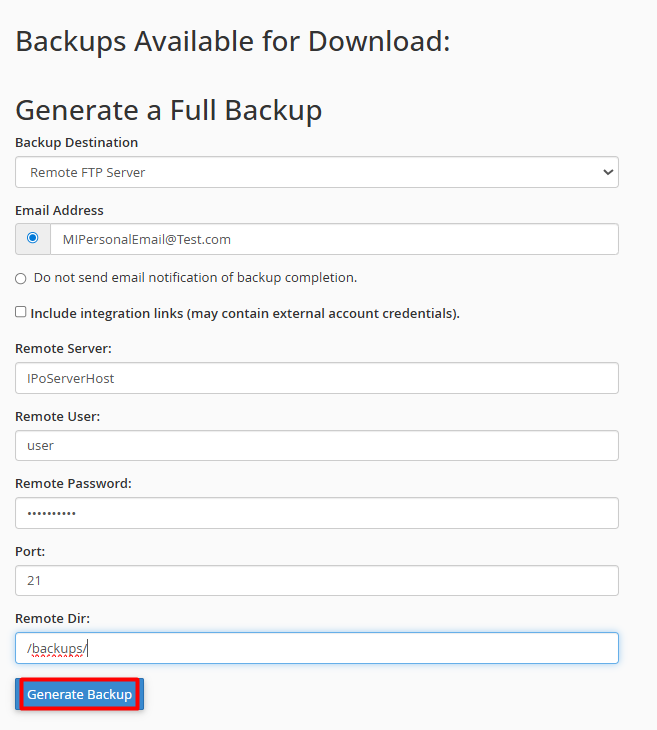
5.1. Remote Server: The IP address or hostname of the destination server.
5.2. User and Password: Your FTP access credentials.
5.3. Port: Usually port 21.
5.4. Remote Directory: The folder path where you want to store the file (Example., /backups/).
Once you have verified the information, click "Generate Backup."
