
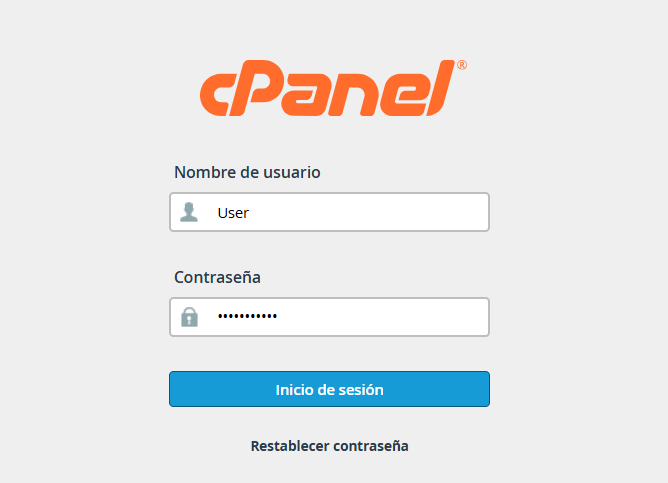
1. Log in to your cPanel control panel.
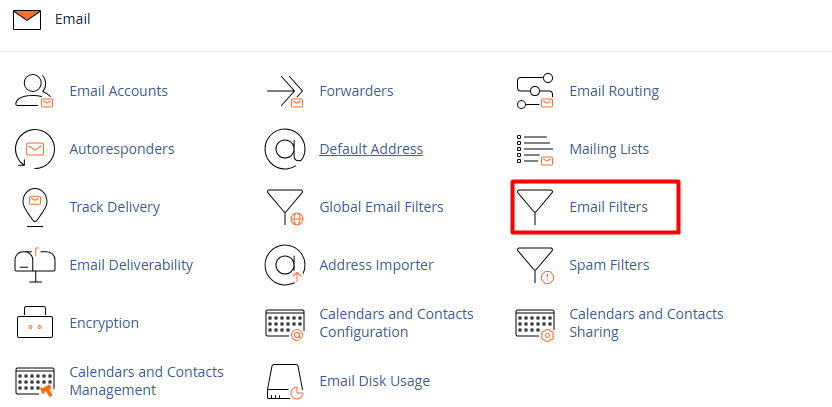
2. In the Email section, choose Email Filters.
3. Select the account where the filter will be applied and click Manage Filters, then select Create a New Filter.

4. Rule Configuration:
4.1. Filter Name: Assign a descriptive name to identify the rule.
4.2. Rules: Define the condition (for example: if the "Subject" contains the word "Invoice").
4.3. Actions: Choose what the system should do with that email (for example: "Deliver to folder" or "Discard Message").
4.4. Activate the filter: Press the Create button to put the rule into operation.
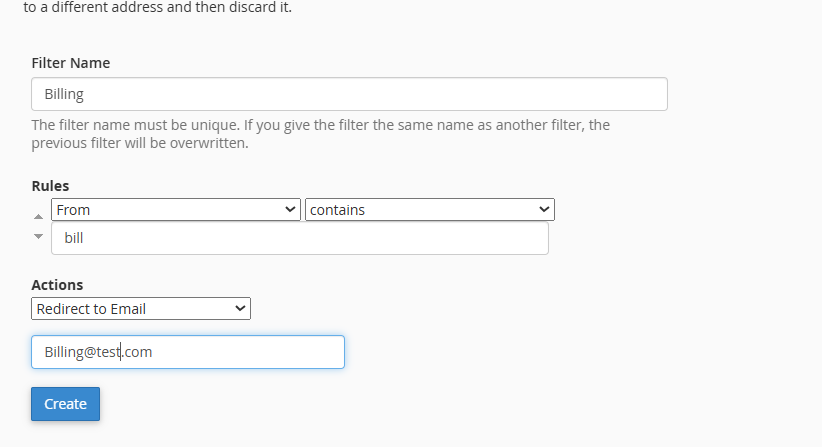
Finish by selecting the Create button.
• Use Global Email Filters: When you want to apply a security or administrative rule to all accounts on your domain simultaneously. This is the perfect tool for blocking unwanted senders or filtering spam keywords across your entire organization in one go.
