
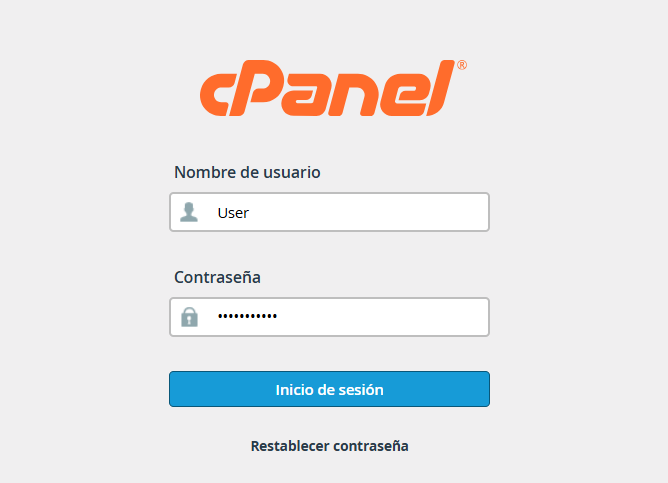
1. Log in to your cPanel dashboard using your credentials.
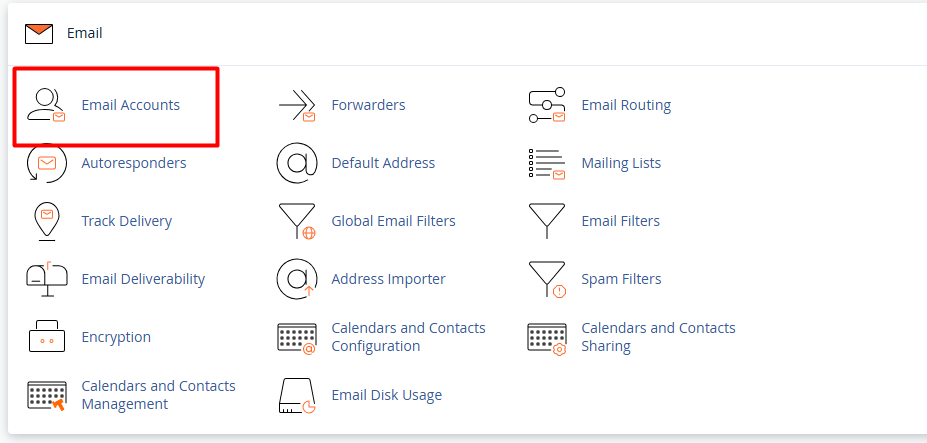
2. Locate the Email section and select the Email Accounts option.
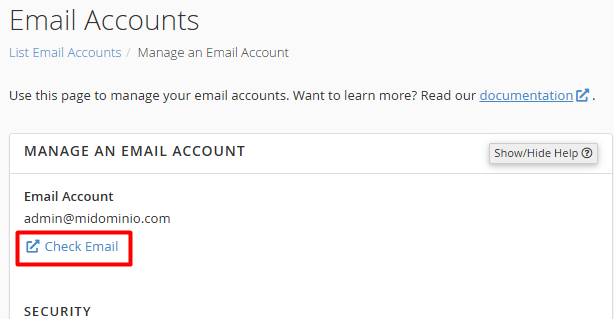
3. From the list of existing accounts, identify the email you wish to modify and click the Manage button.

4.1. Manage Account: Directly access the provided Webmail service to view and manage your messages.
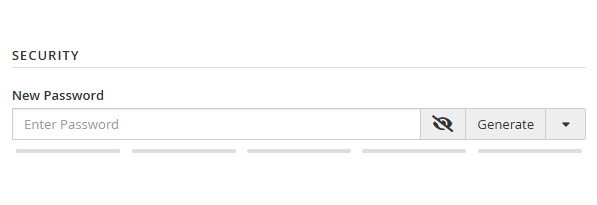
4.2. Security: Update or strengthen your password to ensure the protection of your information.
 \
\
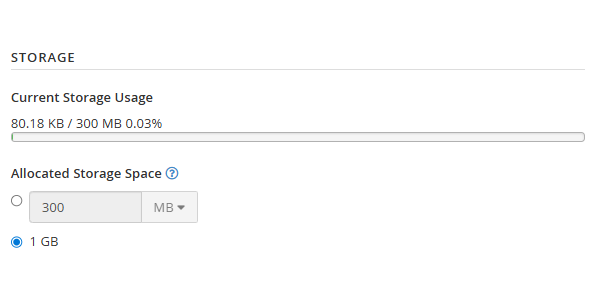
4.3. Storage: Adjust the disk quota available for the account if you need more capacity.
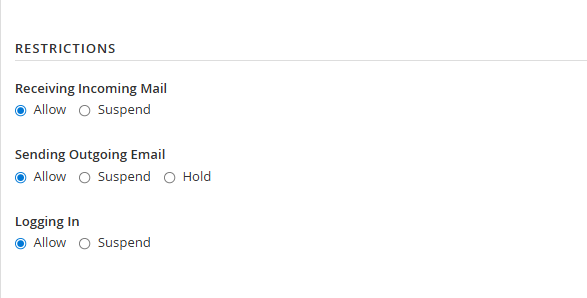
5. User Restrictions: Define specific permissions for each account:
5.1. Receiving Email: Enable or suspend the delivery of incoming messages.
5.2. Sending Email: Control the account's ability to send outgoing messages.
5.3. Logging In: Enable or block access to the mailbox, whether via Webmail or external clients like Outlook or Gmail.
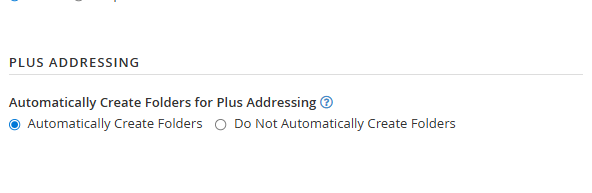
6. Plus Addressing: Configure the automatic creation of dynamic folders using the "+" format.
Once you have made all the relevant changes to the account, select Update Email Account Details to save the changes.
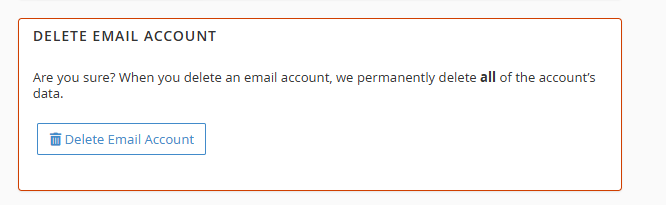
7. Delete Account: Permanently remove the selected account and all its stored content.
Note: It is recommended that the cPanel administrator make all the necessary changes to each account that requires them.
